


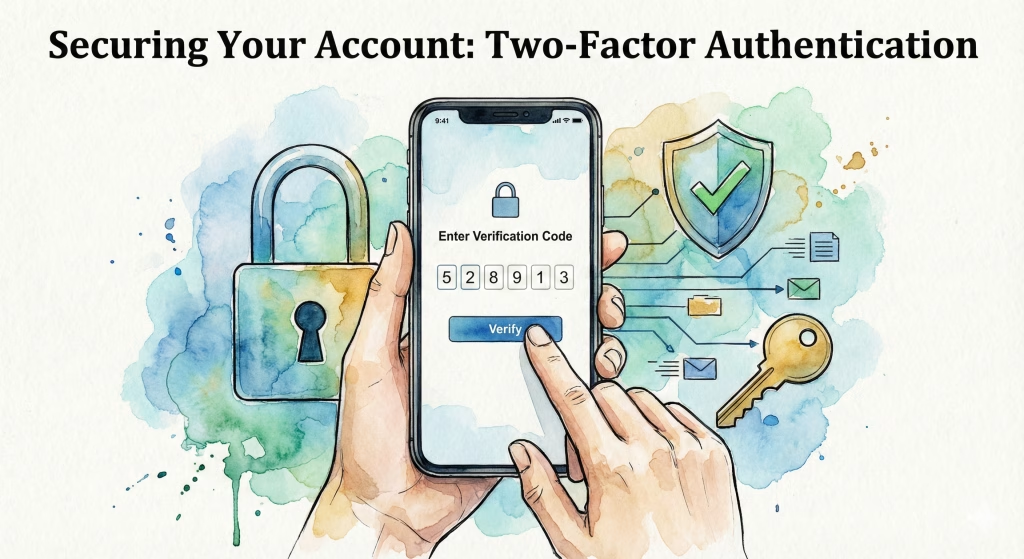
Imagine logging into your bank account or email, only to see that sickening message: “Password Incorrect.” It’s a terrifying thought—and one that’s becoming scarily common. The truth is, relying on a single password, no matter how complex, is no longer enough to secure your digital life. With millions of passwords leaked every year and most people reusing the same weak phrases across multiple sites, a breach isn’t a matter of if but when.
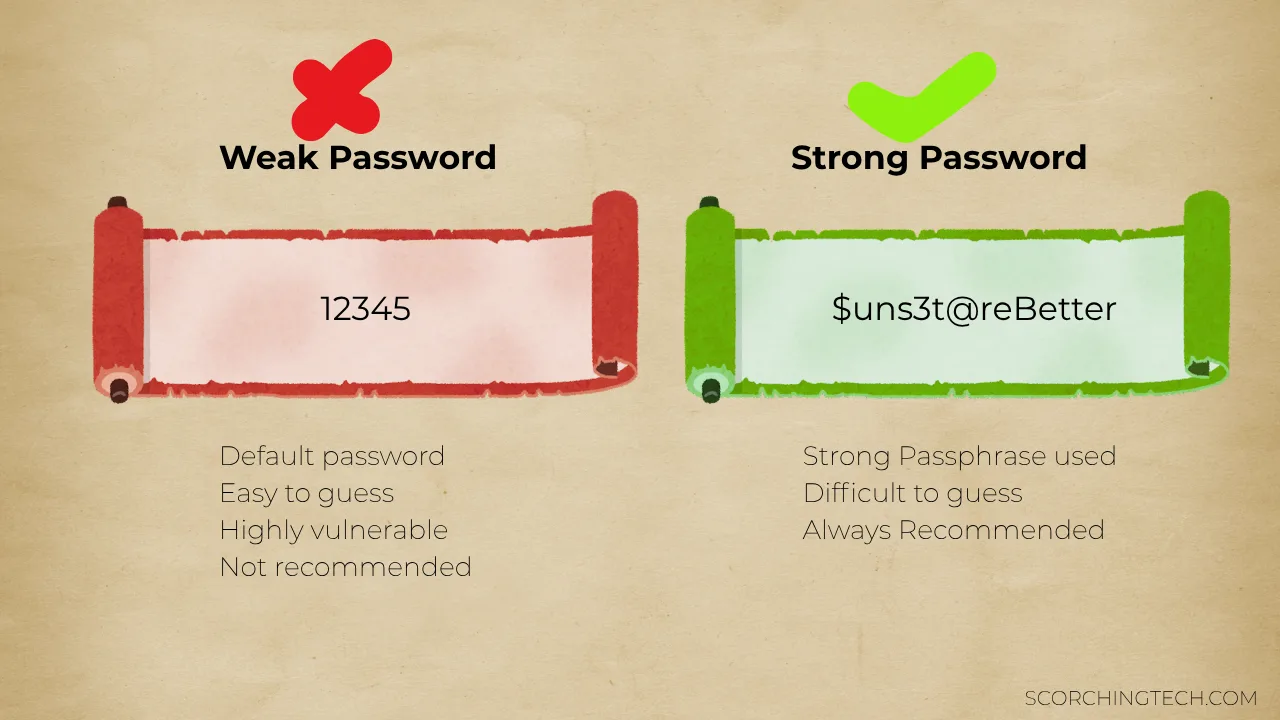
Fortunately, there’s a simple, powerful, and essential shield you can put up right now: Two-Factor Authentication, or 2FA. It’s the digital equivalent of adding a second, uncrackable lock to your front door. This ultimate guide will walk you through exactly what 2FA is, why it’s critical for improving your online security, and how to set it up quickly across all your most critical online accounts.

What Exactly is Two-Factor Authentication? (The Fundamentals)
To understand Two-Factor Authentication (2FA), it helps to use a simple analogy: securing your home. Your standard password is like your front door key—easy to lose or steal, and once a thief has it, they’re in. Two-Factor Authentication (2FA) is like adding a heavy-duty safe inside that requires a unique, constantly changing combination code. Even if a thief steals your key, they can’t access your valuables without the code from your phone.
In digital security terms, Two-Factor Authentication (2FA) requires you to successfully present two separate pieces of evidence (or “factors”) to prove you are who you say you are. This defense is built on the simple principle that a hacker might be able to steal one factor (your password), but they are extremely unlikely to be able to steal two factors from different categories simultaneously.
Cybersecurity experts classify identity verification into three distinct categories of factors:
- Something You Know (Knowledge): This is your traditional password, PIN, or security question. It is the weakest factor because it can be guessed, forgotten, or exposed in a data breach.
- Something You Have (Possession): This is the core of modern 2FA. It is a physical item in your possession, usually your smartphone (which receives a code), a physical security key (like a YubiKey), or a dedicated token.
- Something You Are (Inherence): This is a biological characteristic, such as your fingerprint, face scan, or iris scan (biometrics). While powerful, this is often used as a secondary unlock method after initial 2FA setup rather than the primary two factors for initial account access.
2FA vs. MFA: Clarifying the Terms
You might also hear the term MFA (Multi-Factor Authentication). The two terms are often used interchangeably, but here is the technical difference:
- 2FA (Two-Factor Authentication): Requires exactly two factors from two different categories (e.g., something you know and something you have).
- MFA (Multi-Factor Authentication): Requires two or more factors.
In most everyday scenarios, when a service asks you to enable MFA, they are simply asking you to set up a two-factor (2FA) protection. The goal remains the same: use two different categories of proof to verify your identity.
The Four Main Types of 2FA (The Mechanisms)
Not all two-factor methods are created equal. While any 2FA is better than none, choosing the right mechanism is key to maximizing your security. Here is a breakdown of the four most common types, ranked by general security level:
1. Authenticator Apps (The Recommended Standard)
These are generally considered the best balance of security and convenience. Apps like Google Authenticator, Microsoft Authenticator, or Authy generate a new, unique, six-digit code every 30 seconds.
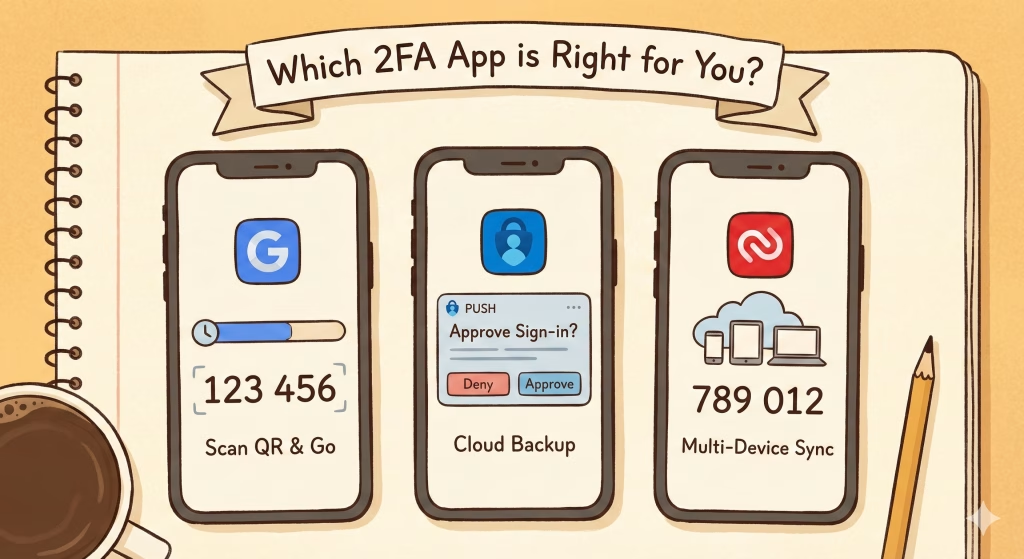
- How it Works: They use a secure standard called Time-Based One-Time Password (TOTP). When you set up Two-Factor Authentication (2FA), the service gives the app a unique secret key. Both the service and your app use this key and the current time to generate the same code simultaneously.
- Pros: Highly secure, works offline, and is not vulnerable to SIM swapping (unlike SMS codes).
- Cons: Requires you to manually open the app and type the code. If you lose your phone, account recovery can be challenging if you don’t have backup codes.
2. Physical Security Keys (The Gold Standard)
These are small, dedicated USB devices (like a YubiKey) that plug into your computer or connect wirelessly via NFC. They are the single most secure form of consumer authentication.
- How it Works: The key uses advanced cryptographic protocols (like FIDO2 and WebAuthn) to verify your identity. The key itself communicates with the service and only activates when you physically touch the device.
- Pros: Nearly impossible to phish. A hacker can’t steal the code because it never leaves the physical key.
- Cons: Requires buying and carrying an extra piece of hardware. If you lose the key, you need a backup method ready.
3. SMS Text Codes (The Simplest, but Least Secure)
This is often the default Two-Factor Authentication (2FA) method, but it is the weakest. The service sends a six-digit code to your phone number via a standard text message.
- How it Works: The service sends the code, and you type it into the login screen.
- Pros: Easiest to use, requires no extra apps or hardware.
- Cons: Vulnerable to SIM Swapping. Criminals can trick your phone carrier into porting your number to their device, allowing them to receive your verification codes. Use this only if no other method is available.
4. Email and Backup Codes (The Safety Net)
These are usually provided as recovery methods. Backup codes are a list of unique, single-use codes given to you during the 2FA setup process.
- How it Works: They serve as emergency access. If you lose your phone or security key, you can use one of these codes to log in and regain control of your account.
- Recommendation: Always save your backup codes in a very secure, offline location, such as a physical printout or in a heavily encrypted file. Never save them in the same digital location (like an unsecured cloud drive) as your main password.
Why 2FA is Non-Negotiable (The Benefits)
Enabling 2FA might feel like a minor inconvenience, but the benefits far outweigh the few extra seconds it takes to log in. In fact, Two-Factor Authentication (2FA) addresses the three most common and devastating risks in modern digital security: password breaches, sophisticated scams, and the frustration of losing account access.
1. The Ultimate Shield Against Stolen Passwords
The core function of 2FA is to make a stolen password useless. Large-scale data breaches are inevitable—from major social media sites to retail stores—and your email and password combination is likely already floating around on the dark web.
- The Second Wall: If a hacker tries to use your stolen password, they will be stopped dead in their tracks at the second factor. Since they do not have your physical phone or security key, they cannot generate the required code, and your account remains locked down.
- Defense Against Password Reuse: This is especially vital if you reuse passwords (which you shouldn’t!). If one site is breached, 2FA prevents hackers from using that same password to compromise all your other accounts.
2. Defense Against Sophisticated Phishing Attacks
Phishing scams—emails or websites designed to trick you into entering your login details—are constantly getting more sophisticated. While some advanced attacks can bypass certain Two-Factor Authentication (2FA) methods (like SMS), stronger methods like Authenticator Apps and Security Keys offer powerful protection.
- Time-Based Protection: Because the TOTP codes generated by Authenticator Apps change every 30 seconds, a phishing site cannot steal the code you used seconds ago and successfully use it to log in as you.
- Authentication Check: With physical security keys, the key itself verifies the site’s legitimacy. If the hacker’s site isn’t the real Google or Facebook, the key simply won’t work, shutting down the scam immediately.
3. A Vital Safety Net for Account Recovery
While 2FA is primarily for defense, it also provides a robust mechanism for recovery. If you ever forget your complex password, lose access to your primary email address, or face another login challenge, your second factor can be your lifeline.
- Identity Proof: When you contact a service to prove your identity, the fact that you still possess the registered second factor (your phone or security key) is the strongest evidence you can provide to regain access.
- Backup Codes: The list of backup codes you saved is specifically designed to bypass the two-factor requirement in an emergency, ensuring you never get permanently locked out of your own account.
Actionable Steps: How to Set Up Two-Factor Authentication (2FA) on Key Services
Enabling 2FA might seem complicated because every service’s menu looks slightly different, but the core process is universally the same. Follow these five steps to lock down any account using the most recommended method: an Authenticator App.
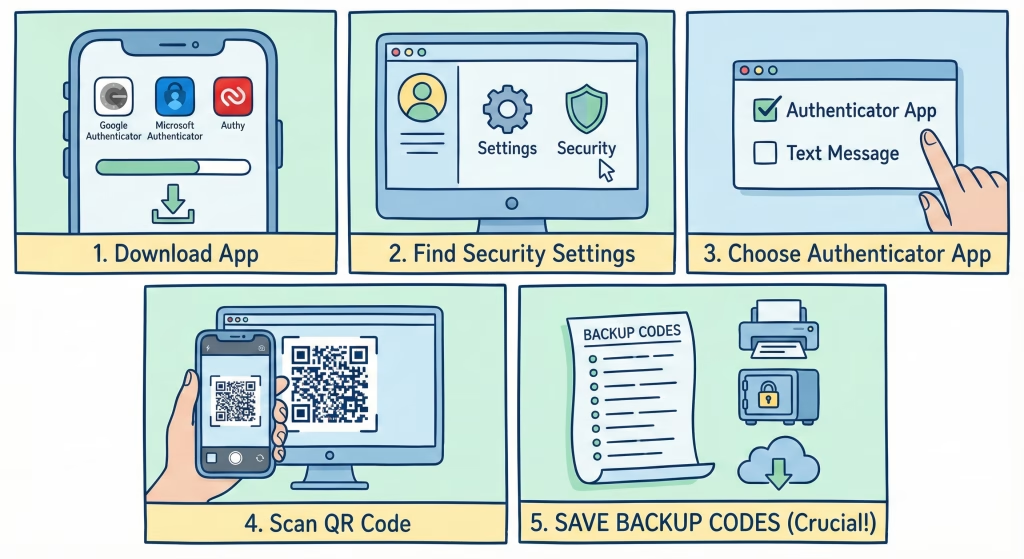
The Universal 5-Step Two-Factor Authentication (2FA) Setup Guide
- Get an Authenticator App: Download a reliable authenticator app (like Authy, Google Authenticator, or Microsoft Authenticator) onto your smartphone. This app will generate your rotating security codes.
- Find the Security Settings: Log into the account you want to protect (e.g., Gmail, Twitter, Amazon). Navigate to the Account Settings or Security & Privacy area. Look for options labeled Two-Factor Authentication (2FA), Multi-Factor Authentication (MFA), or Login Verification.
- Choose the Authenticator App Method: When prompted to select a 2FA method, always choose “Authenticator App” (or “TOTP”). Avoid “Text Message” if the Authenticator App option is available.
- Scan the QR Code: The service will display a unique QR code on your screen. Open your Authenticator App, select the option to “Add Account” or “Scan QR Code,” and point your phone’s camera at the code. Your app will instantly connect and begin generating codes.
- Save Your Backup Codes and Finish: Before you leave the setup screen, the service will provide a list of 8-10 Backup Codes. This is the most critical step! Download and save these codes in a very safe, offline location (like a printout or a secure physical safe). If you lose your phone, these codes are the only way to get back into your account quickly. Then, use the current code from your Authenticator App to finalize the setup.
Priority Check: Where to Enable Two-Factor Authentication (2FA) First
Not all accounts are equally important. Prioritize enabling 2FA on these four types of accounts immediately, as they are the keys to your entire digital life:
| Priority Level | Account Type | Why It’s Critical |
| P1 | Email Account | It is the master key for password resets on every other account you own. |
| P2 | Password Manager | This vault holds all your other passwords; it must be completely locked down. |
| P3 | Financial/Shopping | Banks, PayPal, Amazon, and other accounts tied to your money and credit cards. |
| P4 | Social & Cloud Services | Facebook, Twitter, Instagram, Dropbox, Google Drive, and other accounts that store personal data. |
Conclusion (Make the Change Today)
If you take only one piece of advice from this entire guide, let it be this: Two-Factor Authentication is the single most important, impactful security upgrade you can make to your digital life today. It’s a simple, free insurance policy that takes minutes to set up but provides powerful protection against the overwhelming majority of account compromise attempts.
You now understand how Two-Factor Authentication (2FA) works, why relying only on passwords is a massive risk, and how to set up the most secure methods. The digital world is only getting more complex, but securing your identity doesn’t have to be.
Your Next Step
Take the challenge: right now, use the 5-step guide above and enable Two-Factor Authentication (2FA) on your Email account and at least two other priority services (like your Password Manager and bank). You’ll instantly be more secure than 90% of internet users.