


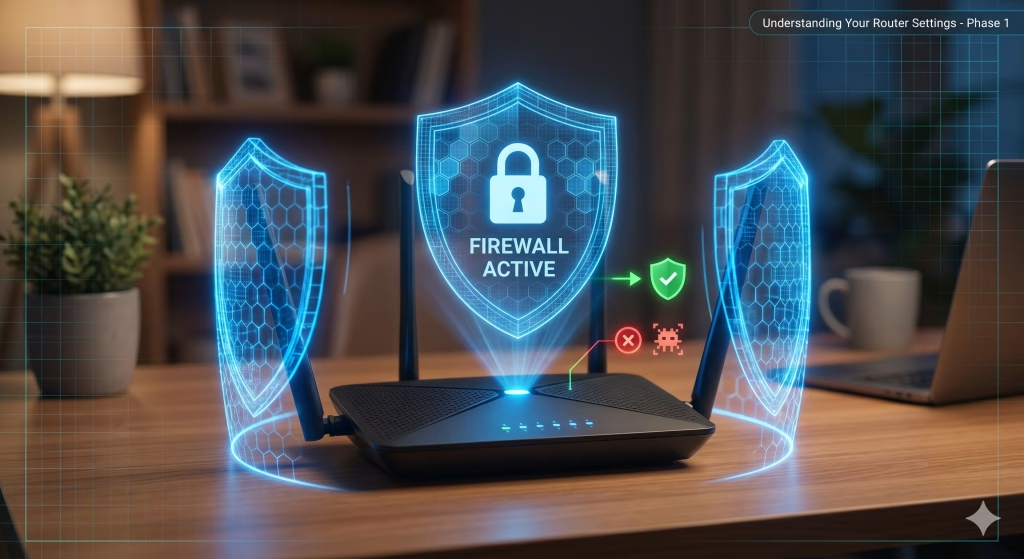
Introduction: The Most Dangerous Device in Your House
[Router Security Guide]
If a hacker gets into your laptop, they have your files. If a hacker cracks your router security settings, they have everything.
Your router is the traffic cop for your entire digital life. It sees every request, every device, and every connection. Yet, millions of routers are sitting on the internet right now with the default username admin and the password password.
Configuring a secure router is the highest-ROI (Return on Investment) action you can take for your home network. It takes 15 minutes, costs nothing, and closes the biggest door to your personal data.
Here is the definitive guide to hardening your router configuration in 2026.
Step 1: Getting Inside (Accessing the Admin Panel)
You cannot improve your router security if you cannot access the settings. To change configurations, you need to log into the router’s “Web Interface.”
- Find your Gateway IP:
- Windows: Open Command Prompt (
cmd), typeipconfig, and look for “Default Gateway” (usually192.168.1.1or192.168.0.1). - Mac: System Settings > Network > Wi-Fi > Details > TCP/IP tab > Router.
- Windows: Open Command Prompt (
- The Browser: Type that IP address into your browser’s address bar like a website.
- The Login: If you have never done this, the credentials are likely on a sticker on the bottom of the router.
- Common defaults: admin/admin, admin/password, or blank.
Troubleshooting: If you can’t log in, perform a “Factory Reset” by holding the small pinhole button on the back of the router for 15 seconds. This resets all router settings to the sticker defaults.
Step 2: Kill the Defaults (Change Router Admin Password)
The moment you log in, your priority is to change the Administrator Password.
- Note: This is not your Wi-Fi password. This is the password to manage the router itself.
Hackers use “botnets” (armies of infected computers) to scan the internet for routers responding to default credentials. If you leave the settings as admin, your router security is non-existent.


Action:
- Find Administration, System, or Maintenance in the menu.
- Change the password to a strong, unique phrase (e.g.,
Blue-Coffee-Mug-Building-2026). - Pro Tip: If your router configuration allows it, change the username from
adminto something else (e.g.,Gatekeeper). This doubles the difficulty for attackers.
Step 3: Patch the Holes (Firmware Updates)
Your router runs an Operating System (firmware). Like Windows or iOS, it has security bugs. Manufacturers release firmware updates to fix these bugs, but most older routers do not update automatically.
Action:
- Look for a Firmware Update or Software Update tab.
- Click “Check for Updates.”
- Critical: If your router is more than 5 years old and the manufacturer says “No updates available,” it is effectively “End of Life” (EOL). It is unsafe to use. You must replace it to maintain a secure home network.
Step 4: Lock the Airwaves (Wi-Fi Encryption Settings)
Now we secure the Wi-Fi signal itself to prevent neighbors or war-drivers from joining your network. Choosing the right encryption is vital for router security.
The Standards:
- WEP: Obsolete. Can be cracked in 60 seconds. Never use.
- WPA: Obsolete.
- WPA2 (AES): The minimum standard. Secure for most uses.
- WPA3: The new gold standard. Use this if your devices support it.
Action:
- Go to Wireless or Wi-Fi Settings.
- Set Security Mode to WPA2-Personal (AES) or WPA3-Personal.
- Avoid “WPA2-TKIP” as TKIP is an older, weaker protocol.
- Set a strong Wi-Fi Password. Length wins here.
MyDogLikesToEatPizzaCrustsis better thanTr0ub4dor&3.
Step 5: Disable Convenience Features (UPnP & WPS)
Router manufacturers add features to make setup “easy.” These features are almost always router security liabilities.
Disable WPS (Wi-Fi Protected Setup)
WPS is that little button you press to connect a printer without typing a password. It has a massive vulnerability (PIN brute-force) that allows attackers to crack your Wi-Fi password in hours.
- Setting: Go to Wireless > WPS and select Disable.
Disable UPnP (Universal Plug and Play)
UPnP allows devices inside your network (like an Xbox or generic IP Camera) to ask the router to “open a port” to the internet without your permission. Malware uses this to phone home. Disabling UPnP is a key step in secure router configuration.
- Setting: Go to WAN or Advanced Network > UPnP and select Disable.
- Note: This might make “Open NAT” on gaming consoles harder. You should learn to manually port forward for specific consoles instead of leaving UPnP on for everything.
Step 6: Remote Management (The Backdoor)
Most routers have a feature called “Remote Management” or “Web Access from WAN.” This allows you to log into your home router from the office.
Action:
- Turn this OFF.
- Unless you are a network engineer with a very specific reason, you should never allow the admin panel to be accessible from the internet. You should only be able to manage the router settings when you are physically inside the house.
Summary Checklist: Router Security Best Practices
- [ ] Admin password changed from default.
- [ ] Firmware updated to the latest version.
- [ ] Encryption set to WPA2-AES or WPA3.
- [ ] WPS Disabled.
- [ ] UPnP Disabled.
- [ ] Remote Management Disabled.
Next Step: Now that your router security settings are locked down, we need to talk about the data leaving it. Are VPNs actually necessary for home users? Read The Truth About Consumer VPNs.