Secure Home Network Guide: How to Harden Your Router for Remote Work (2026)
Introduction: Why a Secure Home Network is Your First Line of Defense
For most people, the “Home Network” is a black box. You plug a plastic box from your ISP into the wall, connect to the Wi-Fi, and forget about it.
In 2025, this “set it and forget it” mentality is dangerous. With the rise of remote work, building a secure home network is no longer just about protecting Netflix streams; it is about securing an extension of the corporate enterprise. Your router handles sensitive company data, financial transactions, and private communications.
If your router is compromised, the attacker controls the “digital air” in your home. They can intercept traffic, redirect banking requests, and enslave your smart devices.
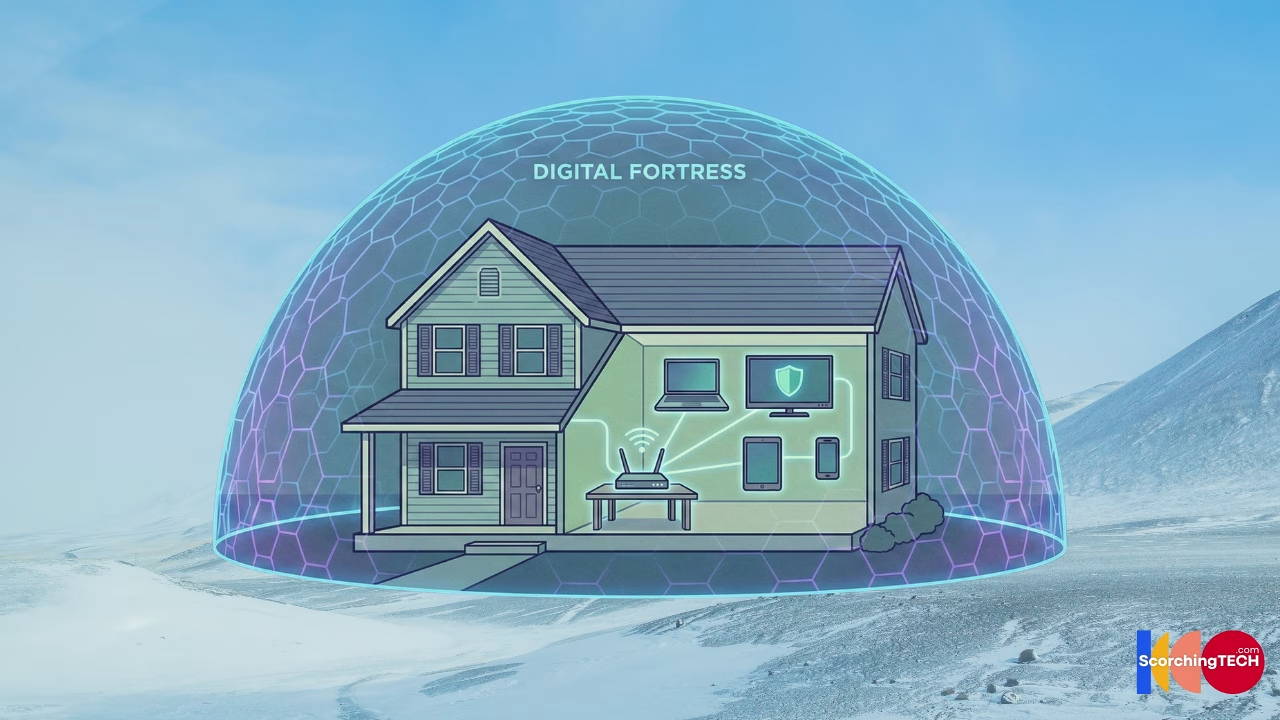
This guide will walk you through the essential steps of home network hardening, transforming your environment from a consumer-grade vulnerability into a segmented fortress.
Part 1: The Perimeter – Router Security Essentials
The router is your front door. Unfortunately, ISP-provided routers are often insecure by design, prioritizing ease of setup over home network security.
1. Change Default Credentials (The #1 Rule)
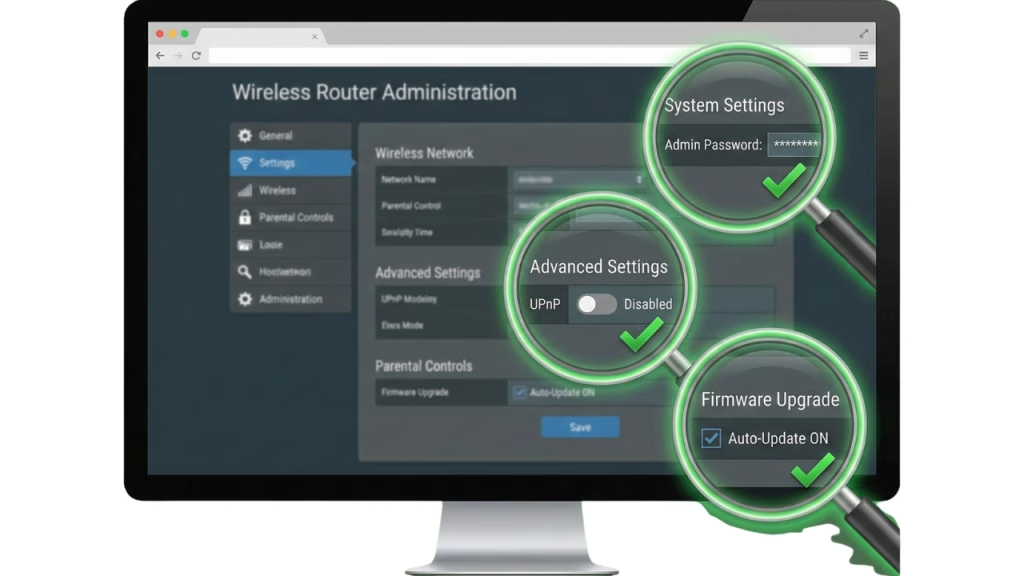
The most critical error in router security is leaving the default username (admin) and password (password). Botnets scan the internet 24/7 looking for these defaults. If you haven’t changed yours, your network is likely already compromised.
2. Automate Firmware Updates
Routers are computers with operating systems that contain bugs. If you do not update your router’s firmware, you are leaving known doors open. Modern routers allow for “Automatic Updates”—enable this immediately to maintain a secure home network posture.
3. Disable UPnP (Universal Plug and Play)
UPnP is a convenience protocol that allows devices (like Xbox or IP Cameras) to punch holes in your firewall automatically. While convenient, it is a massive hole in home network hardening. Disable it. If a device needs port forwarding, configure it manually.
Internal Link Opportunity: We cover the specific settings you need to change in every router interface in our guide: [Link to Cluster 2.1: Router Security 101: Changing defaults, firmware, and encryption].
Part 2: Encryption and Privacy – The VPN Layer
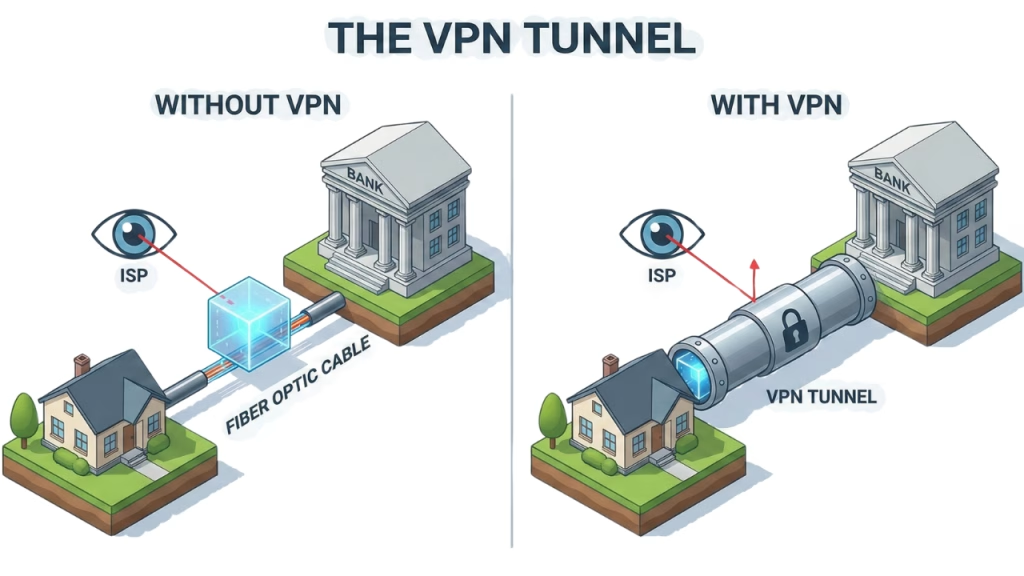
Once your perimeter is secure, you must secure the data leaving it. Your ISP (Internet Service Provider) can legally see every domain you visit. To achieve true home network security, you need to blind them.
The Role of a VPN
A Virtual Private Network (VPN) creates an encrypted tunnel between your device and a server controlled by the VPN provider. Your ISP sees only “gibberish” data. They cannot see that you are visiting a banking site or a health portal.
The Trust Paradox
However, a VPN does not eliminate trust; it shifts trust. Instead of trusting your ISP, you are now trusting the VPN provider. This is why choosing a “No-Logs” VPN with independent audits is crucial for a secure home network. Many free VPNs are actually spyware in disguise.
Internal Link Opportunity: Not all VPNs are safe. Learn how to spot the scams in [Link to Cluster 2.2: The truth about Consumer VPNs: What they hide and what they don’t].
Part 3: Internal Segmentation – IoT Isolation

The biggest threat to your secure home network usually isn’t your laptop; it’s your smart fridge.
IoT (Internet of Things) devices are notoriously insecure. They have hard-coded passwords, rarely receive updates, and have full network access. If a hacker compromises your $10 smart lightbulb, they can use it as a pivot point to attack your work laptop on the same Wi-Fi network.
The Solution: VLANs and Guest Networks
To practice effective home network hardening, you must segment your network traffic.
- VLAN 1 (Trusted): Laptops, Phones, Tablets.
- VLAN 2 (Untrusted/IoT): Smart TV, Fridge, Thermostat, Alexa.
If your router doesn’t support VLANs, use the “Guest Network” feature for your IoT devices. This ensures that even if your smart bulb gets hacked, the attacker is trapped in the Guest Network and cannot touch your sensitive files.
Internal Link Opportunity: Segmentation sounds complex, but it’s essential. See our tutorial: [Link to Cluster 2.3: Isolating IoT Devices: Why your smart bulb needs its own VLAN].
Part 4: The Invisible Enemy – Wi-Fi Hygiene
Wireless signals bleed through walls. Anyone parked on the street outside your house can attempt to interact with your network. Home network security requires securing the airwaves.
1. Encryption Standards
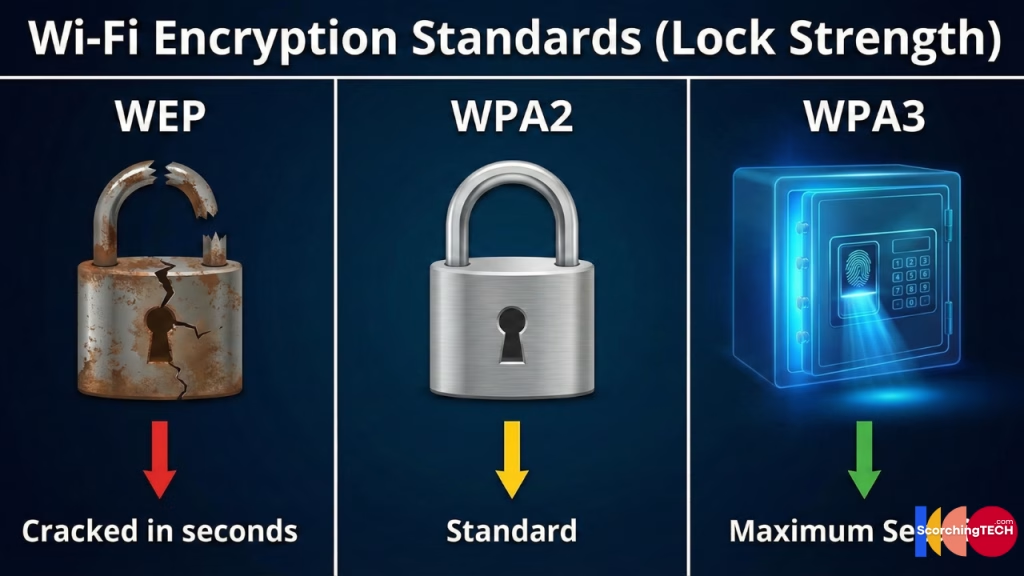
Ensure you are using WPA3 if your devices support it. If not, WPA2-AES is the minimum standard for a secure home network. Never use WEP or WPA (TKIP), which can be cracked in seconds.
2. The “Evil Twin” Attack
Be wary when working from coffee shops. Hackers can set up a fake Wi-Fi hotspot (e.g., “Starbucks_WiFi”). If you connect, they sit in the middle (Man-in-the-Middle) and read your traffic. This bypasses your home network hardening entirely.
Internal Link Opportunity: Learn how to detect when someone is listening to your connection in [Link to Cluster 2.4: Detecting “Man-in-the-Middle” attacks on public Wi-Fi].

Conclusion: Adopting a Zero Trust Mindset
The corporate world is moving to “Zero Trust”—the idea that no device should be trusted just because it is inside the building. You must apply this logic to build a secure home network.
Assume your smart TV is hostile. Assume your ISP is watching. Assume your neighbor’s kid is trying to guess your Wi-Fi password. By prioritizing home network hardening—securing your router, encrypting traffic, and isolating devices—you create a digital environment where you can work safely.
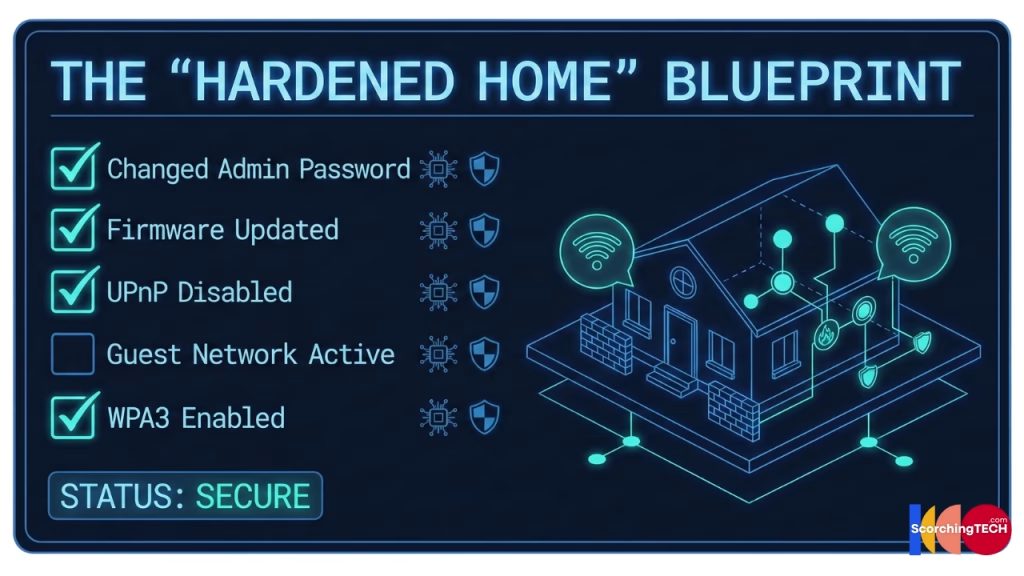
Secure Home Network Checklist
- [ ] Log into router admin panel.
- [ ] Change default admin password.
- [ ] Disable UPnP and WPS.
- [ ] Create a separate “Guest Network” for all Smart Home devices.
- [ ] Verify WPA2-AES or WPA3 encryption is enabled.